
TUTORIAL 02 / REVIEW / 3 MIN
Review an import and find missing fields
Read import counts and coverage, then inspect the contact rows without confusing missing data with a failed import.
Download the fictional sample CSV ↓Actual AppendIQ screens, fictional clients and records. Screenshots use local simulated responses. No live provider results, customer data, or charges.
- 01
Compare imported and skipped counts
After import, review the completion panel and Import History. This demo shows six imported and zero skipped. A completed import confirms processing status, not that every field is present or accurate.
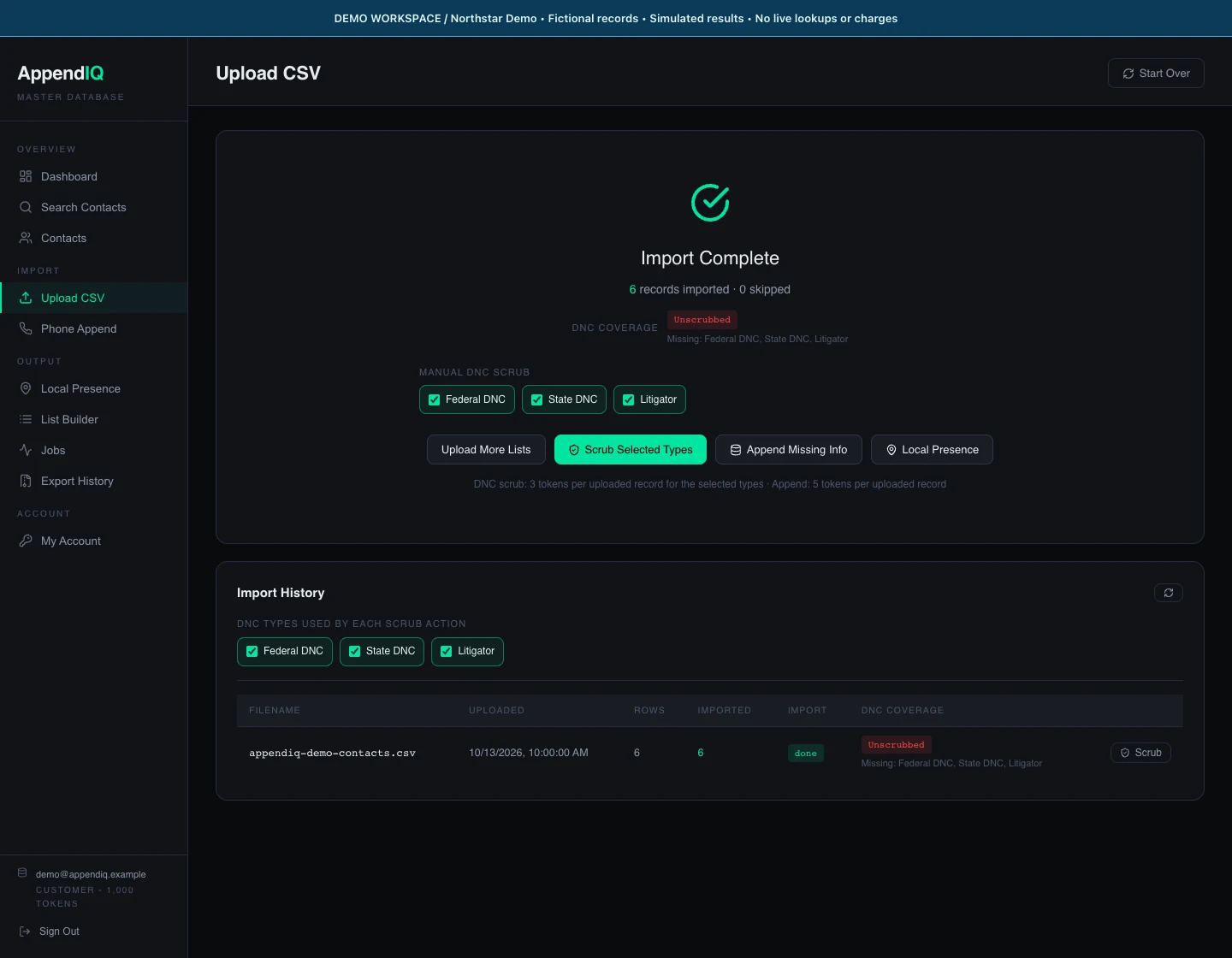
Import and screening are separate: these demo records are imported but still marked Unscrubbed.Open full size ↗ - 02
Inspect the Contacts table
Open Contacts in the sidebar. Review the name, business, email, location, primary phone, and tags. Our example deliberately leaves an email blank on Demo Contact 03 and a state blank on Demo Contact 05. Blank cells do not establish whether another value is valid.
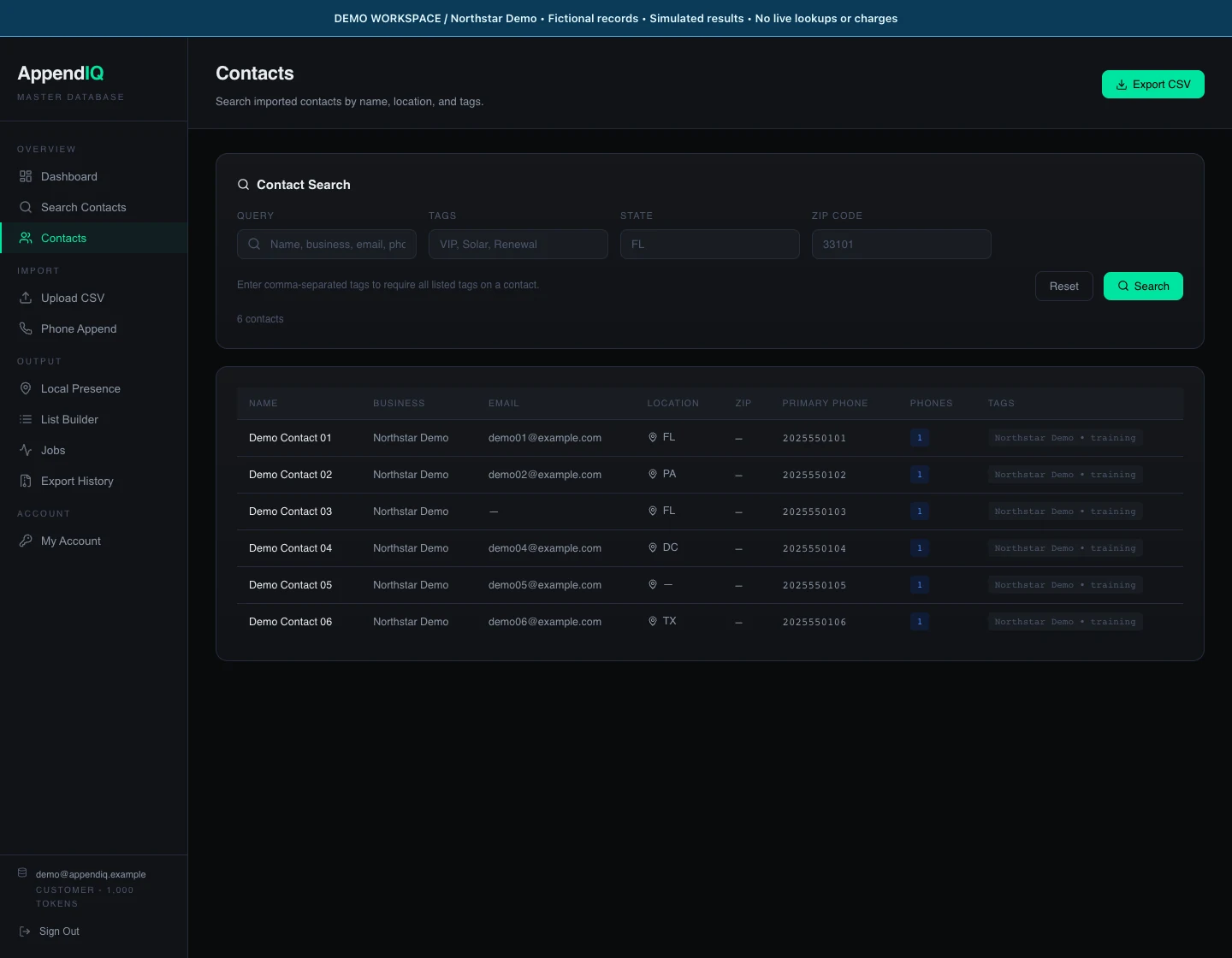
Demo review: blank email or location cells are data gaps, not proof that an import failed.Open full size ↗ - 03
Use the available filters
Use the search, tag, state, or ZIP filters to narrow the table, then select Search. Reset clears the filters. Check the result count and a few records before exporting. This screen offers record inspection; it does not produce a comprehensive data-quality score.