
TUTORIAL 04 / ENRICHMENT / 3 MIN
Preview an append and review enrichment
Select the existing phone-number column, inspect a simulated match preview, and read the completed append summary.
Download the fictional sample CSV ↓Actual AppendIQ screens, fictional clients and records. Screenshots use local simulated responses. No live provider results, customer data, or charges.
- 01
Upload a file containing phone numbers
Open Phone Append and choose your CSV. In the current implementation, this workflow matches existing phone numbers against the master contact database and fills available missing information. It does not demonstrate discovering a new phone number from only a name or address.
- 02
Enter the exact phone-column header
Enter phone_number for our sample. Review Total Phones, Matched, Match Rate, and the preview rows. A preview can be sample-based; the displayed numbers are not a promise of complete coverage. The fixture shows four matches out of six solely to illustrate the screen.
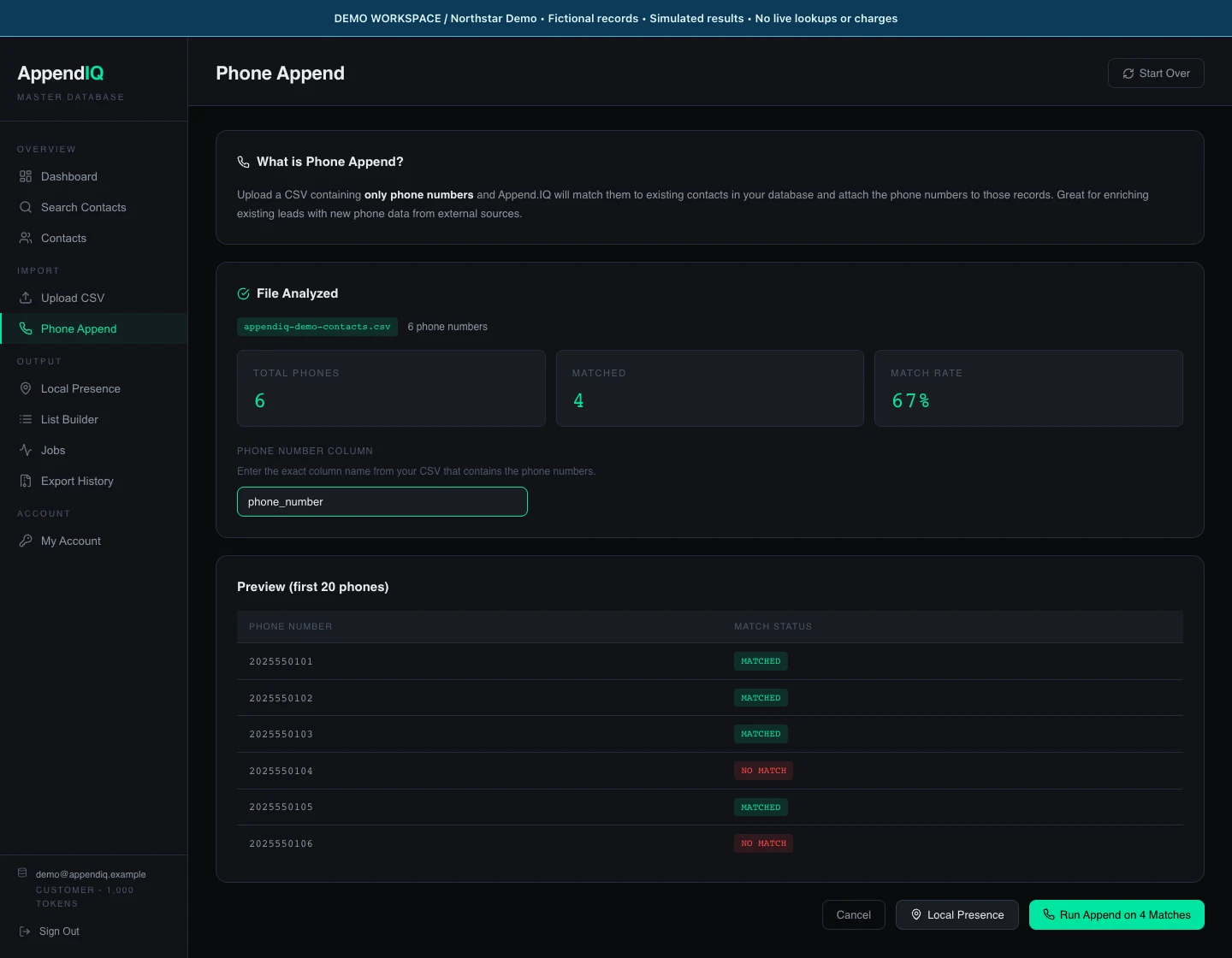
Demo preview: four matched and two unmatched records are deterministic fixture values, not an expected match rate.Open full size ↗ - 03
Review scope, then inspect the completed result
The Run Append button starts a job. On a live account, charges are based on uploaded rows under the app’s billing rules, even though the button mentions matches. Do not treat the matched count as a billing quote. Our simulated completion shows four matched, two unmatched, and two fields appended.
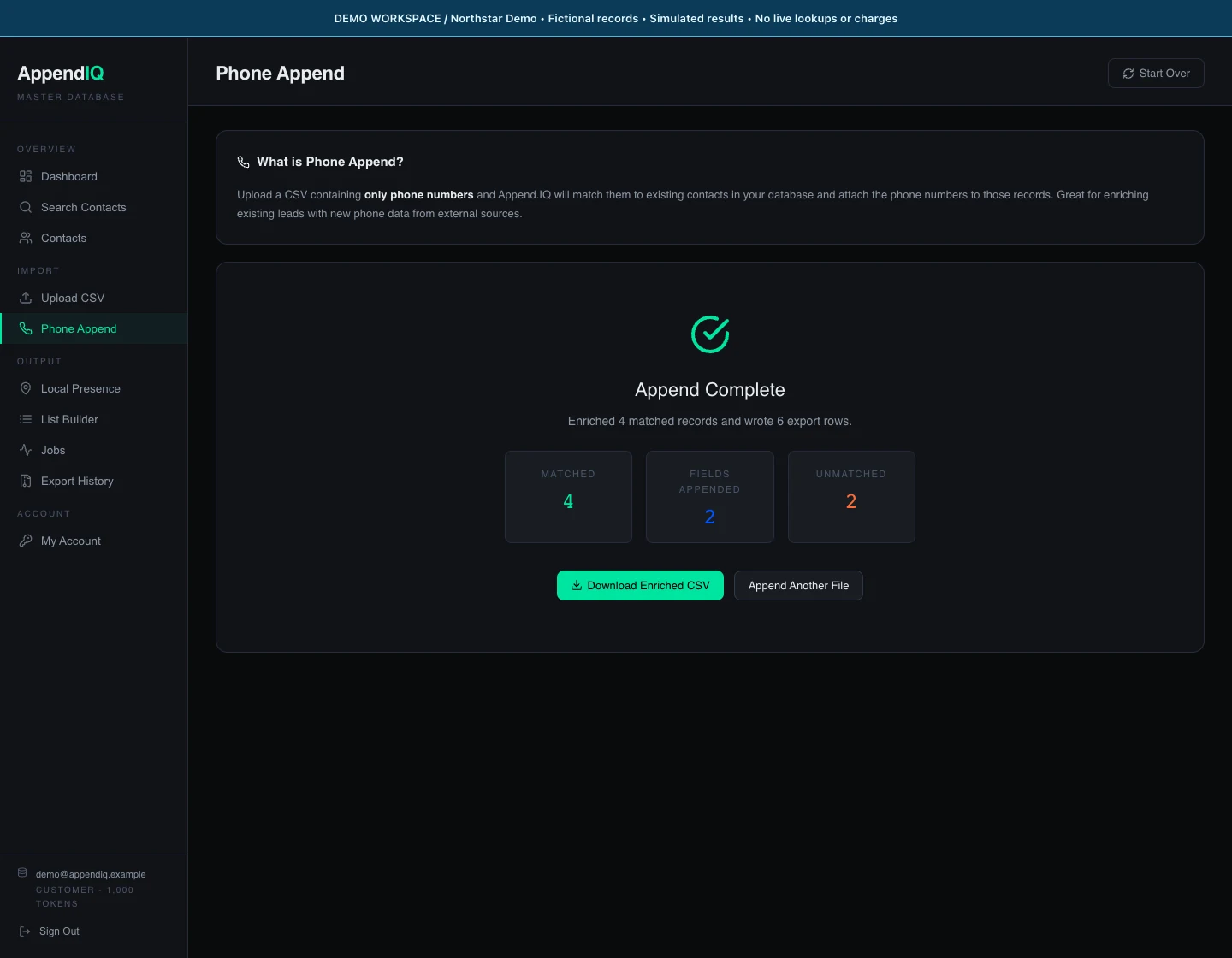
Simulated completion: compare matched records, fields appended, and export rows—they measure different things.Open full size ↗ - 04
Compare the exported file with your source
Use Download Enriched CSV when the result is available. Keep the original file and compare values before further use. Append fills available gaps; it is not a screening result or proof that a record is current.