
TUTORIAL 05 / EXPORT / 2 MIN
Download and check a completed result
Find available result files, download the right artifact, and compare its rows with the completed job.
Download the fictional sample CSV ↓Actual AppendIQ screens, fictional clients and records. Screenshots use local simulated responses. No live provider results, customer data, or charges.
- 01
Confirm that the job finished
In Jobs, check that the task is done and review its input and exported counts. A pending or processing task may not have a downloadable artifact yet. An error should be investigated before using any partial output.
- 02
Open Export History
Choose Export History in the sidebar. Match the file name and type to your task, then check rows, creation time, and expiration. The retention period is shown by your account’s configuration; the screenshot’s 30 days is the demo value.
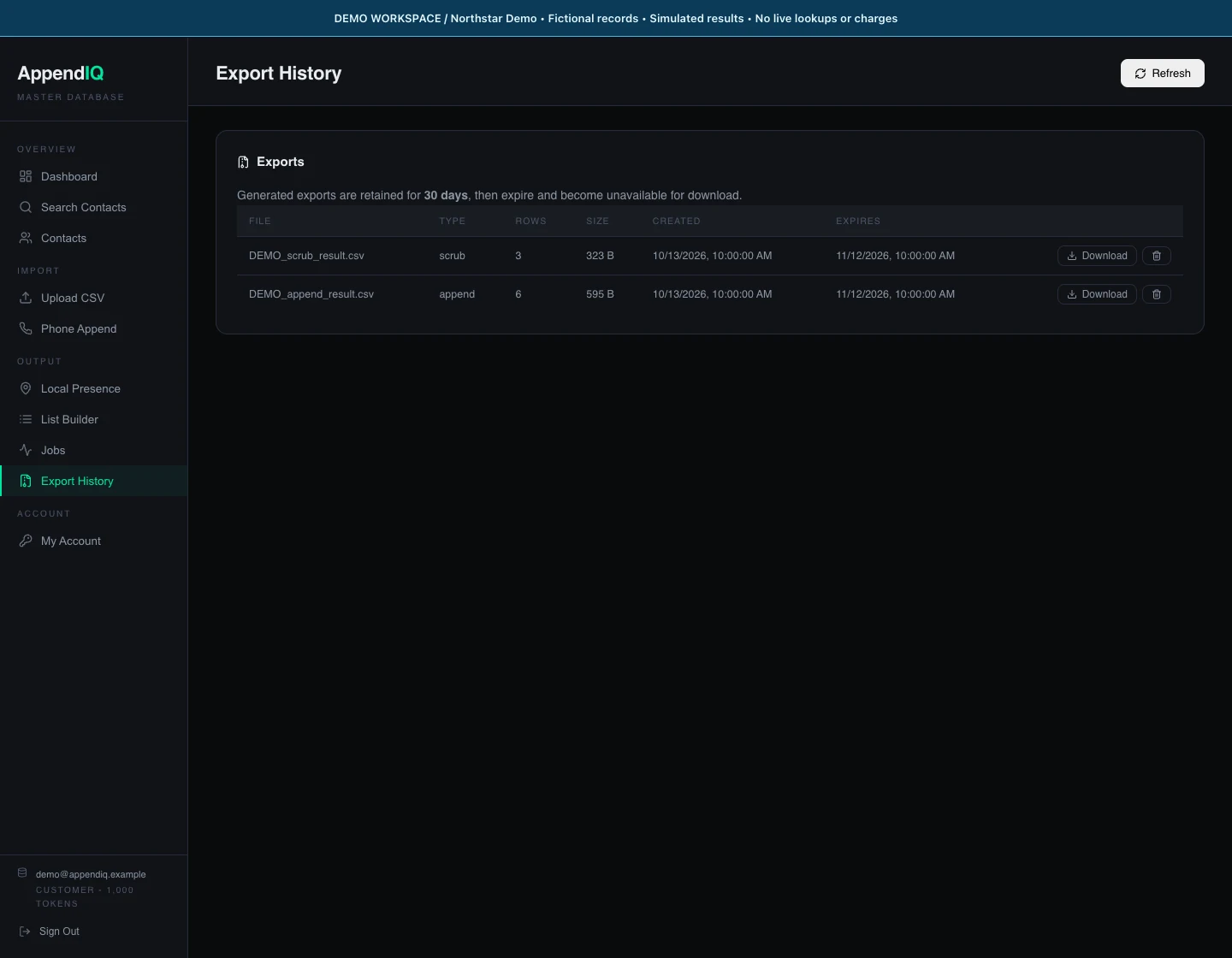
Demo artifacts: the simulated scrub output retains three rows; the append output contains six rows.Open full size ↗ - 03
Download and verify
Choose Download for an available artifact. We exercised this control locally and verified that the simulated scrub CSV contained a header and three retained fictional rows. Compare the output with the source and job summary before passing it to another system. An expired or unavailable artifact cannot be downloaded through that button.